You don’t need to be rolling in dough to launch a WordPress site. In fact, you can launch a site on a small budget. Today I’m going to show you how to launch a WordPress blog for under $45.00.
Oh and by the way: Thispost contains affiliate links, meaning that if you choose to click through and make a purchase, I will receive a small commission at no cost to you.
Costs
The costs for building a WordPress website can range from low to Woah! There are many factors to take into consideration when you decide to launch a WordPress site. Here are the main things you need to purchase to launch your site: *If you decide to DIY
Domain & Hosting
Theme
Plug-in(s)
WordPress Hosting
Purchase hosting with a company that offers you free domain registration. Some hosting providers offer domain registration free with the purchase of a hosting package. In fact, Bluehost, the company I use to host all of my sites, is offering web hosting for $2.95 per month for a year of hosting. This is a part of their Black Friday deals. That’s 35.40 for one year of hosting and a free domain)
WordPress Theme
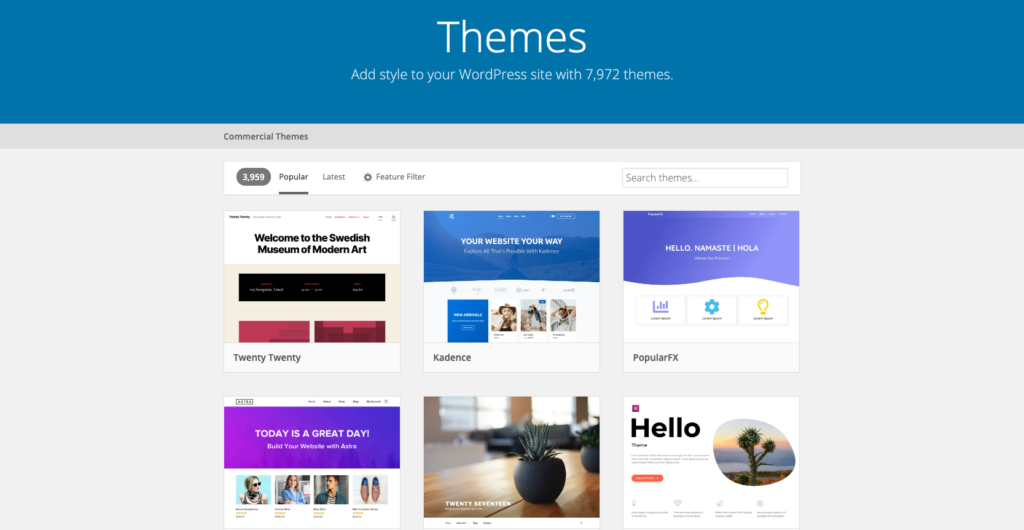
Use a FREE WordPress Theme. There are many options when it comes to choosing a theme. I prefer a premium one, but you can start with a free theme until you’re ready to upgrade. Use this link to search for Free WordPress themes.
Plug-ins
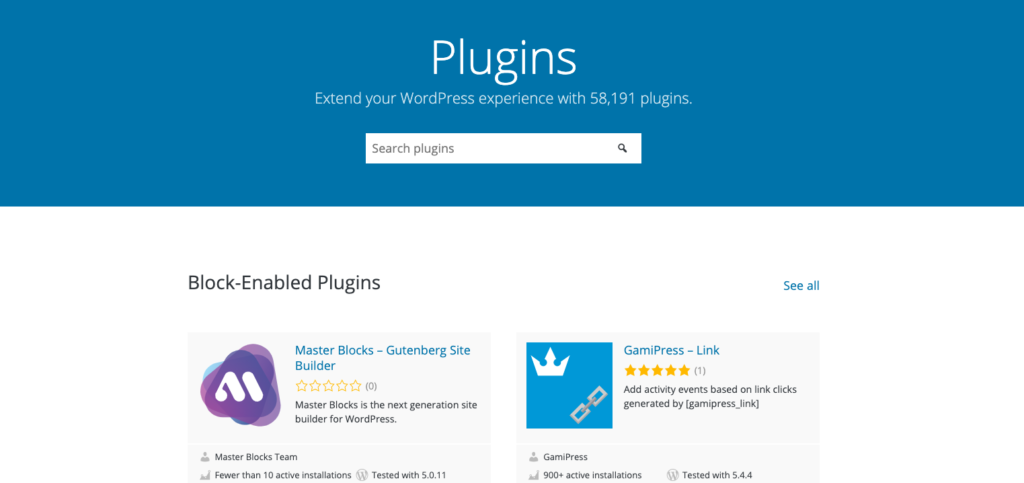
Use FREE Plug-ins. The WordPress repository has a ton of plug-ins, some of which are free. Just remember to write out your list features, search, compare your options, and choose ones that have been updated recently. Some of my favorite free plug-ins are Yoast SEO, Contact Form 7, and Classic Editor, just to name a few.
So let’s do the math
Domain & Hosting Costs:$35.40
WordPress Install costs:$0.00
Plug-Ins:$0.00
Theme:$0.00
Grand Total: $35.40
So for less than the costs of a new pair of shoes, you can launch your WordPress site. Need some help with launching a WordPress site? Contact me to chat about your next steps.
Which is the number one reason why you should protect your WordPress site.
I’m not trying to startle you or discourage you in any way, but I love you enough to tell you the truth. I’ve seen businesses of all sizes get hacked.
Your WordPress website is no different. It’s not something to set and forget or ignore.
Here are 7 overlooked reasons why you should protect your WordPress site:
1. Maintain trust and a good reputation
When your clients and potential clients visit your website and find that it’s not working, they usually keep it moving. And many times they will go to your competitor who is taking care of their website. You could potentially lose business and customers if your website is not kept up to date.
2. Save yourself time
Your hands are already full with the daily running of your business, managing your home, and more, so you don’t have time to figure out how to de-hack your site if should ever get hacked for some reason. You don’t have time to Google the solution. Or maybe you do, but why not spend time doing something you actually enjoy doing.
3. Save money
A hacked site means it will be down until it’s restored. If you are selling products and services or blogging for profit….that means no money is being made.
4. You will feel more confident and secure in the daily running of your business
Instead of sitting in a pool of worry and anxiety about the safety of your site, you’ll feel secure knowing that your site is safe, protected, and in good hands.
5. It Costs More to Fix Than to Maintain
You’ve already invested money into the creation of your site, and it will cost you more money to get your site fixed and back online than to invest in protection and maintenance for your site.
6. Malware and viruses are creepy and annoying
Malware and virus are hideously ugly and make your site sick. If you’ve ever experienced a malware attack, you know ow annoying those attacks can be.
7. You need your website
Period. It is the hub for your business and super important to have in 2020 and beyond. It’s the foundation of your online business. Why wouldn’t you protect it?
Don’t let the Covid-19 restrictions take you out of the game…
Problem: You’re a service provider who normally meets with clients in person. Due to Covid-19, your face to face visits are limited or don’t exist. You need a solution to be able to schedule consultations, collect payments, and meet/chat with your customers.
Solution: Digify your Business
That’s right. It’s time to Digify your business. I’m not asking you to create a digital version of yourself or become a programmer…( breathe ok) . But I am asking you to open your mind to add some solutions to your current business. If you have a website or landing page already, then you’re halfway there. If not that’s ok too.
Oh and by the way….this post contains affiliate links.
How to Digify Your Business
So how do you digify your business? You choose one part of your business that would normally be done in person and find a digital/web solution.
Let’s use the consultation as an example. Almost every service business has some sort of consult which is usually done in person or over the phone. Digifying the process not only saves you time and energy, but you’ll be able to get as much information as possible before deciding if you want to work with the potential client. Here are the items you need to conduct a consultation in person:
A Consult Form – Use this form to collect basic information and ask any questions you’d normally ask during a consultation. Questions vary depending on your industry.
A calendar – use this to schedule your consultations and future appointments
Your 2 eyes ( 4 if you wear glasses) – use this to make eye contact and connect with your client
All of these items can be digitally/virtually done.
You can use Gravity Forms to create consultation forms. Calendly to accept appointments and payments, and Zoom for video conferencing. If you have a WordPress site, all of these can be added to your site and automated. This ensures that potential clients can book you while you sleep. You can also set up an autoresponder to let them know what to expect next.
Not using Pinterest because it’s too much work? Not anymore! Try Tailwind Create.
Problem:
Creating content for Pinterest takes too long! Sometimes trying to figure out what to post, create the content, and designing the graphics takes too long. It can be a frustrating process. Your schedule is busy and you need to make good use of the time you do have to dedicate to your business.
Oh and by the way: This post contains affiliate links, meaning that if you choose to click through and make a purchase, I will receive a small commission at no cost to you.
Solution: TailWind Create
Last week I shared the 5 reasons why I love Tailwind. I use Tailwind to post on Instagram and Pinterest, but Pinterest is one of the main drivers of traffic to my blog and website. Tailwind has a new tool that helps me create, schedule, publish, and analyze my pins all in one place. The newest tool is called Tailwind Create!
Here’s what I love about Tailwind Create:
You don’t have to have any design experience and look like a pro
Every image is unique and made just for you. You can generate, personalize, and fine-tune Pins to drive traffic to your new and old content.
Everything happens in one place, so you never have to download, upload, or organize your files. It is so fast.
It shows me designs I might not have thought of on my own but that looks great!
I can go from idea to Pin in 30 seconds. I enjoy entering my URL, choosing images, and then immediately seeing hundreds of Pin variations!
Being amazing on Pinterest just got a whole lot easier.
Not sure of how to use Tailwind? Watch the video below to learn how to use Tailwind.
How many times have you written a blog post or created content on the day you planned on sharing it? Only to get distracted or put something out there that wasn’t edited…just so you could post something. I understand completely and I found a tool that not only helped me automate my Pinterest and Instagram content but also increased the traffic to my website. Today, I’m going to share 5 reasons why I love Tailwind.
Here are the 5 reasons why I love Tailwind:
You can schedule automate your post on Instagram
You can have others reshare my content quickly
You can track my progress through analytics
You can discover new hashtags
You can use the Google Chrome Extension to add content to my queue
#1 Schedule and Automate your post
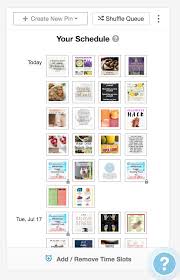
Before I started using Tailwind, I would wake up and create the day of, or create at the spur of the moment. With Tailwind, you can set the day, and time that you would like for your content to post, and they will post it for you. It’s the perfect way to share content consistently and in advance.
#2 Share your content with Tailwind Tribes
Tailwind Tribes was a game-changer for me. Not only did I find a lot of content to pin to my boards, but I also got a chance to share my content with others, so they could pin my content to their boards. A month of using TailWind Tribes increased my total audience by 234%.
#3 Tailwind Analytics
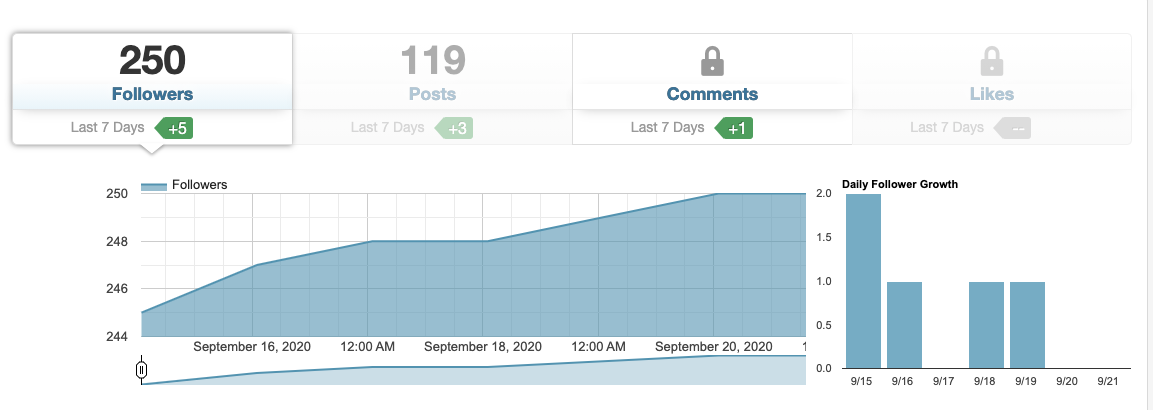
Every week I like to track my progress to see what’s working and what needs to be reevaluated. Tailwind has a dashboard that tracks your analytics. You can get an overview of your follower count, Like, comments and engagement.
#4 Hashtag Finder
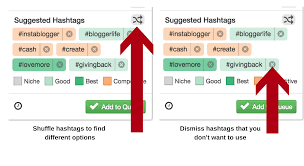
Instagram lets you use up to 30 hashtags and Tailwind makes it easy to find hashtags that are relevant to your industry. As you add Hashtags, they give you suggestions on ones you could use that aren’t overused by others.
#5 Tailwind Google Chrome Extension
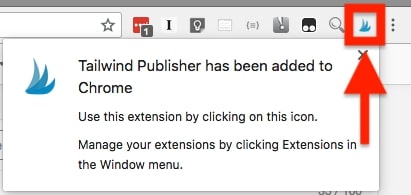
As I’m browsing the web, I chrome across great articles and content that I want to share on Pinterest. Instead of copying and pasting a link, I can use the Tailwind extension to quickly pin items to my boards. It saves me time and energy.
Conclusion
There are many tools that you can use to automate your social media post. If you want a tool that will help you automate the process of pinning to Pinterest or posting to Instagram. I highly recommend Tailwind.
Social Media has become a necessity for any online business. One question that I get asked often is “What should I post on Instagram?” At times things can get a little overwhelming and confusing, especially if you don’t use social media on a regular basis. Today I want to share a simple social media strategy that you can use to get started with consistent Instagram posting. This particular strategy was created for an online tutoring business, but you could apply the same strategy for your business… just switch up the hashtags to align better with your industry.
When creating a strategy, you want to outline as much as possible. I recommend creating a Word or Google Drive document and use the days of the week as an outline. Then under each day add your caption and hashtags, and your graphic/video/image.
EX.
Caption: Peace, my name is Olivia and I love WordPress. I also love teaching business owners how to use WordPress and how to make their sites work for them. Now that you’ve met me, tell me a little about yourself. #meetme #monday#tutor #tutoring #wordpress #learning #math #teacher #tutorial #study #maths #onlinetutoring #students #school #mathtutor #teaching #student #learn #tutors #studygram #tutoringservices #privatetutor #online #mathstutor #covid #homeschool #teachersofinstagram #homeschooling #kids #onlinelearning #classes #hometutor #studymotivation #motivation #parents #mathematics #educator #class #studytips
Simple and strategic…right?!
Here is a 5 day Instagram just for you. Each day has a topic and hashtags that you can use. I’ve also included 37 extra hashtags you can use. Remember, you can only use 30 per post
Monday Instagram Post
MEET ME MONDAY – Share something about yourself
Hashtags: #meetme #monday and any hashtags from below
Tuesday Instagram Post
TEACH ME TUESDAY – Teach your followers a skill from your subject area
Hashtags: #teachme #tuesday and any hashtags from below
Wednesday Instagram Post
WORK WITH ME WEDNESDAY – Let potential clients know about opportunities to work with you
Hashtags: #workwithme #wednesday and any hashtags from below
Thursday Instagram Post
TESTIMONIAL THURSDAY – Share a testimonial from a happy client
Hashtags: #testimonial #thursday and any hashtags from below
Friday Instagram Post
FUN FRIDAY – Ask followers to share a GIF to represent their weekend plans
Hashtags: #funfriday #Friday and any hashtags from below